Summary
This page describes the weekly content workflow that myself and the Content Freelancer directly helping me with content (i.e., summaries, subject tags, review questions, and so on) will follow. At present, I use this process for content from two weekly Bible studies, but it would generalize just fine to other sorts of content too.
Content
What we go over here is related to a single week’s content processing
What I mean by this is that this page goes over the process from the perspective of one week of content only, and does not really consider things from the perspective of multiple weeks. In practice, combined-pages (think the Study column on the Meeting Google Sheets, rather than the Page column) can span across multiple weeks, but that is something we really won’t concern ourselves with here, aside from certain steps that are gone over here being conditional based upon whether a combined-page is beginning or ending during the specific week in view.
Content processing for multiple weeks will sort of overlap in practice. You’ll be doing the pre-processing for the next week at the same time as the post-processing for the week before. What will not overlap is post-processing for multiple weeks.
Kicking off a week: Steven gets next week’s content ready to pre-process, and then sends a message saying content processing for the week can begin
Steven: Create one or more new combined-pages, if necessary
If we finished a combined-page in the previous week, we will start working in a completely new combined-page in the next week. When this happens, I have to create that file before anything else can happen.
Steven: Add row(s) for the new combined-pages to the Content Freelancer Google Sheet, if necessary
If we finished a combined-page in the previous week, we will start working in a completely new combined-page in the next week. When this happens, after creating the new combined-page (see immediately above), I have to add the path for the new file to a new row in the Content Freelancer Google Sheet, so that the checkboxes to open the file will work.
Steven: Add one or more new source-clip-video-page sections to the combined-pages
Whether this is on a newly created combined-page, or the same one as the week before, the next step is for me to add whatever new source-clip-video-page sections we will go over in the week (since only sections of this sort ever have pre-processing). I will only add the source-clip-video-page sections that we will actually go over in the week (i.e., the ones that you will be responsible for), and never “get ahead” of what we will cover in that week. This keeps things intuitive, and prevents the webpages live on the site from having blank sections.
Steven: Message Content Freelancer that content processing can begin
Post-processing for the last week: Basic organization, and thumbnail descriptions
We want to get the thumbnail descriptions to our Thumbnail Generation Freelancer as soon in the week as possible. So we split defining these off into its own quick-turnaround step, and you’ll basically only do the bare minimum to specify good thumbnail descriptions in this step.
At a high level, this post-processing step involves:
- Organizing the video recording segments and removing group discussion video recording segments and
group-discussion-page-video-pagesections that ended up being empty in practice. - Ensuring all
content-pagesections (includinggroup-discussion-page-video-pagesections) have descriptive titles. - Ensuring all
content-pagesections havecontent-thumbnail-descriptionparameters defined.
Content Freelancer: Organize video recording segments
See here for how to organize video recording segments.
Content Freelancer: Do initial stuff for all content-page sections aside from group-discussion-video-page sections
So that means processing original-content-subpart-video-page sections, source-clip-video-page sections, follow-on-topic-video-page sections, and so on.
The steps you take to do this depend upon the content type. If it is discussion content or original content that is not outline-content or live-content (i.e., is a section that that has full written content), then things are simpler, and you can just directly add the content-thumbnail-description based off of the full written content.
If it is an original content section that is live-content, then there is a bit more:
- Watch the
live-contentvideo recording segment, and jot down notes as you do so, to help you build section metadata. (This is necessary, since the section will not have any written content at all). Watching it on 1.5x or 2x speed can save time. - Use the notes you jotted down while watching the video recording segment to help build the
content-thumbnail-description.
Same deal if it is an original content section that is outline-content:
- Watch the
outline-contentvideo recording segment, and jot down notes as you do so, to help you build section metadata. (This is necessary, since the section will only have an outline). Watching it on 1.5x or 2x speed can save time. - Use the notes you jotted down while watching the video recording segment to help build the
content-thumbnail-description.
Content Freelancer: Do initial stuff for group-discussion-video-page sections
Relative to other content-page sections, there is a bit more to do for group-discussion-video-page sections:
- Add the section title of whatever other
content-pagethegroup-discussion-video-pagesection belongs to in theparentparameter of thegroup-discussion-video-pagesection’spropertiesshortcode. - Watch the group discussion video recording segment, and jot down notes as you do so, to help you build section metadata. (This is necessary, since the section will not have any written content). Watching it on 1.5x or 2x speed can save time.
- After finishing watching the group discussion video recording segment and jotting down notes, add a specific title to the
group-discussion-video-pagesection. This is necessary since these sections start off only having the generic title “Group discussion”. The title you give the section should correspond to what was discussed in the video recording segment. If “most” discussion was about a specific topic, then make that topic the title. If discussion was sort of all over the place (such that you can’t just pick one topic easily), then make the title match the title of the other section the group discussion section belongs to, except prefixed with “Group discussion:” (rather than, for example, “{Source}:” or “Follow-on topic:”).
Content Freelancer: Message Steven that all content-page thumbnail descriptions are done
Before messaging me this you should save and close out of all the Markdown files. You should not do anything more until you receive the next message from me.
Post-processing for the last week: Other metadata necessary for generating the YouTube video and podcast episode versions of the content
The next post-processing step gets us just far enough to generate the YouTube video and podcast episode versions of the content. Generating the these things requires us to have specific metadata defined upfront, and that is what we focus on here.
At a high level, this post-processing step involves:
- Ensuring all
content-pagesections have summaries. - Ensuring all
content-pagesections havecontent-comment-call-to-actionparameters defined. - Ensuring all
content-pagesections havecontent-short-titleparameters defined.
Steven: Message Content Freelancer that it is safe to start on other metadata necessary for generating the YouTube video and podcast episode versions of the content
Content Freelancer: Add metadata necessary for generating the YouTube video and podcast episode versions of the content to all content-pages that did not require you to watch the video recording segments
These are the normal source-clip-video-page sections, follow-on-topic-video-page sections, and so on that have full written content. For these, you will:
- Add summaries based off of the full written content
- Add
content-comment-call-to-actionparameters based off of the full written content - Add
content-short-titleparameters based off of the full written content. See here for how to specify short titles.
Content Freelancer: Add metadata necessary for generating the YouTube video and podcast episode versions of the content to all content-pages that did require you to watch the video recording segments
These are sections in live-content and outline-content, as well as group-discussion-video-page sections. For these, you will:
- Add summaries based off of the notes you jotted down while watching the video recording segment before.
- Add
content-comment-call-to-actionparameters based off of the notes you jotted down while watching the video recording segment before. - Add
content-short-titleparameters based off of the notes you jotted down while watching the video recording segment before. See here for how to specify short titles.
Content Freelancer: Message Steven that all other metadata necessary for generating the YouTube video and podcast episode versions of the content is done
Before messaging me this you should save and close out of all the Markdown files. You should not do anything more until you receive the next message from me.
Post-processing for the last week: Updating the Meeting Google Sheets, and notifying community group chats that content is now live
Steven: Review post-processing done so far, and push content live on website
I may make changes here and there if I decide I want to adjust anything you specified. That doesn’t necessarily mean you did anything wrong, just that I had a somewhat different creative vision.
Then I’ll push the content live on the site.
Steven: Message Content Freelancer that content is now live on the website, so rows should now be added to the Meeting Google Sheets
Content Freelancer: Add rows to the Meeting Google Sheets
See here for how to add rows to the Meeting Google Sheets.
Content Freelancer: Message Steven that rows have been added to the Meeting Google Sheets
In this case, you can immediately move on to the next part (i.e., final post-processing for the last week, and pre-processing for the next week) after messaging me this; you do not need to wait on any message from me.
Steven: Review rows added to Meeting Google Sheets, and message community group chats letting everyone know that content is now live
At this point, folks within the community group chats will be able to review the written content and video content from the last meeting. We try to make this happen as soon as possible every week, so that people have the maximum amount of time that circumstances allow to review the content before the next meeting. This is why we don’t delay the content go live behind subject tags, passage tags, and review questions.
Post-processing for the last week: All other post-processing steps
This is all the rest of the content post-processing for the last week.
At a high level, this post-processing step involves:
- Ensuring all Bible passage references in
outline-contentget replaced with properly-formatted scripture shortcodes. - Ensuring all subject tags, passage tags, and review questions are specified
- Ensuring roll-up versions of those three things (plus roll-up summaries too) are specified, when necessary
- Ensuring that
playlist-short-titleandplaylist-thumbnail-descriptionare specified, when necessary
Content Freelancer: Replace all Bible passage references in outline-content with properly-formatted scripture shortcodes
Content Freelancer: Add subject tags, passage tags, and review questions to all content-page sections
Content Freelancer: Add roll-up summary, subject tags, passage tags, and review questions to all subpart-page sections
Content Freelancer: Add roll-up summary, subject tags, passage tags, and review questions to the combined-page itself, if we are now done with the combined-page
Add the playlist-short-title and playlist-thumbnail-description parameters to the frontmatter of the combined-page, if we are now done with the combined-page
Pre-processing for the next week
Content Freelancer: Specify exact beginning and end timestamps for embedded source clips
Specifying timestamps for embedded source clips, works differently depending upon whether the thing being embedded is a YouTube video clip, or an audio file (e.g., MP3 file) clip:
- YouTube video clip timestamps are specified in exact seconds.
- Audio file clip timestamps are specified in an
hh:mm:ssformat.
Content Freelancer: Convert copy-pasted source clip content to Markdown
With regard to converting copy-pasted source clip content to Markdown, only some sorts of source clips will have the full text copy-pasted in. At present, source clips from Ichthys MP3 files will be of this sort, but not source clips from embedded YouTube videos.
For basic Markdown syntax, see here. Past that, you will also need to worry about things called shortcodes, which are used to format specific content in a special way.
At present there are two main shortcodes you will deal with in converting source clip content:
scriptureshortcodesichthys-translationshortcodes
The scripture shortcodes are used for Bible passage quotes from regular Bible versions (e.g., ESV, NIV11, NASB, etc.). The ichthys-translation shortcodes are used for Bible passage quotes that Dr. Luginbill has translated himself. You’ll know them by the fact that no version will be specified by the Bible passage quote.
Closing out a week
Content Freelancer: Message Steven that both final post-processing for the last week and content pre-processing for the next week are done
Before messaging me this you should save and close out of all the Markdown files. You should not do anything more until you receive the next message from me.
Steven: Check over the pre-processing for the next week, and add slide breaks to the converted Markdown content, if the week had any
Steven: Fill in rest of the content for the next week
This would be summary points, follow-on topics, and so on. You don’t have to do any pre-processing for this content; I do everything myself for these.
I will not be drafting this content in the combined-page file during the week, but in a separate draft file. I will only paste it into the combined-page file Saturday afternoon close to when we do the studies, which will be after the deadline for you to be done with post-processing from the previous week and pre-processing for the current week. This helps prevent file conflicts in Dropbox, which would otherwise arise if you and I ever overlapped in editing the file.
Steven: Run the next week meetings
Steven: Check over the final post-processing for the last week, and push the final version of last week’s content live on the website
I may make changes here and there if I decide I want to adjust anything you specified. That doesn’t necessarily mean you did anything wrong, just that I had a somewhat different creative vision.
Then I’ll push the content live on the site. After this, the cycle will repeat itself: what had been “next week” will now become “last week”.
Current weekly deadlines
Currently, I’d like us to shoot for this general schedule:
- Sunday afternoon: Steven owes Content Freelancer next week’s content to pre-process, and the green light for last week’s content to post-process.
- Tuesday afternoon: Content Freelancer owes Steven basic organization and thumbnail descriptions.
- Thursday afternoon: Content Freelancer owes Steven other metadata necessary for generating the YouTube video and podcast episode versions of the content.
- Thursday evening: Steven owes Content Freelancer live webpages.
- Thursday evening: Content Freelancer owes Steven rows added to Meeting Google Sheets.
- Saturday by 12:00 PM Eastern Time: Content Freelancer owes Steven final post-processing for last week and pre-processing for next week.
Note that once we actually start producing the videos every week, more steps will get added, and the deadlines will probably shift from Tuesday/Thursday to Monday/Wednesday (or something like that). But for now, this is fine.
Temp documentation
I will split all this out onto separate pages eventually. Just wanted to get stuff down on paper to begin with, though.
How content gets pushed every week
Sections to pre-process get pushed at the same time as final post-processing from the week before. Happens Sunday afternoon.
Initial post-processing gets pushed mid-week. Right now will happen Thursday evening.
Leave blank lines between parameters in properties shortcodes
This makes everything look better.
How to specify short titles
For source-clip-video-page titles, the content-short-title ought to have the source in brackets following the title. So “Some title [src: Some Source]”. For example:
- “Ryan Reeves: The Second Crusade” as a title becomes “The Second Crusade [src: Ryan Reeves]” as a
content-short-title.
For follow-on-topic-video-page titles, the content-short-title will drop the “Follow-on topic:” prefix.
For group-discussion-video-page titles, the content-short-title will drop the “Group discussion:” prefix, but add the word discussion in brackets after the title. For example:
- “Group discussion: Assurance of salvation” as a title becomes “Assurance of salvation [discussion]” as a
content-short-title.
How to organize video recording segments
Step 1: Create raw folder for the wider page study, if does not already exist
If this week’s content is for a new combined-page that did not exist before, you will have to add the recording folder for the combined-page, and the raw subfolder. Otherwise you can skip this step.
Go to the bibledocs-recordings folder within the Family Room folder on the Dropbox web interface.
Based off of the path to the combined page (which I will have added in Column A on the Content Freelancing sheet for whichever specific Bible study), you will be creating a new folder to hold the recordings for this combined-page.
This cell will contain the path to the combined page:
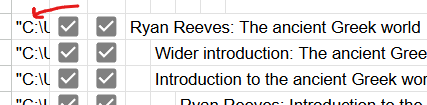
If you double click the cell in the Google Sheet, you’ll be able to see the full path.
What you need to do is:
- Make a new folder in the
bibledocs-recordingsfolder matching the path of the combined page, if it doesn’t already exist. Make any intermediate folders too, if necessary (i.e., they did not already exist). - Then make a subfolder called
rawwithin it
Step 2: Move the video recording segments to the raw folder for the wider page study
The raw video recording segments will be located in the Zoom folder within the Family Room folder on the Dropbox web interface, within a subfolder corresponding to the date and time that we had the Zoom meeting.
You should move the raw video recording segments to the raw folder discussed in Step 1.
Step 3: Rename the video segments according to the format specified in the Content Freelancer Google Sheet
Review the tab on the Content Freelancer Google Sheet titled “Recording segment naming”. This tab specifies the video recording segment naming format.
Having moved the video recording segments to the right place in Step 2, you should now rename them according to this format.
As part of this, you should delete and group discussion video recording segments that end up not actually containing anything (i.e., if the video recording segment is just me asking if anyone has anything to discuss and then silence after that). This sometimes happens, if folks don’t have anything they want to talk about more.
When you delete these sort of empty group discussion video recording segments, you should also delete the whole corresponding group discussion section on the combined-page.
How to add rows to the Meeting Google Sheets
After I message you telling you that I have pushed the content live, then you’ll have everything you need to add rows to the Meeting Google Sheets.
The rows that show up on these sheets will only be content-pages (so no roll-up-pages). This is different than the Content Freelancing Google Sheet (i.e., the one with the checkboxes that let you directly open the files, along with all the TODO tracking). That Google Sheet shows both roll-up-pages and content-pages (since you also have some TODOs for roll-up-pages), but the Meeting Google Sheets only show content-pages = those that we recorded video segments for.
You should add rows to the meeting sheet in the order we recorded the sections. For each row, fill in:
1) The date, in the Date column
This is straightforward. It is just the date we went over the thing in the Bible study
2) A bibledocs.org link to the combined page webpage, in the Study column
This is also straightforward. This will be a link to the latest page on the BibleDocs Ichthys Bible Study or BibleDocs Open Bible Study list pages.
The value in this column will be the same across all sections belonging to the same overall study
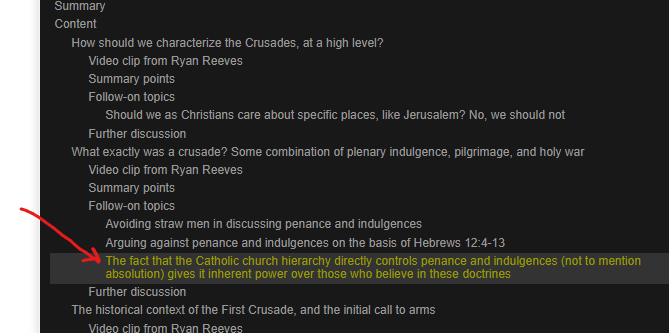
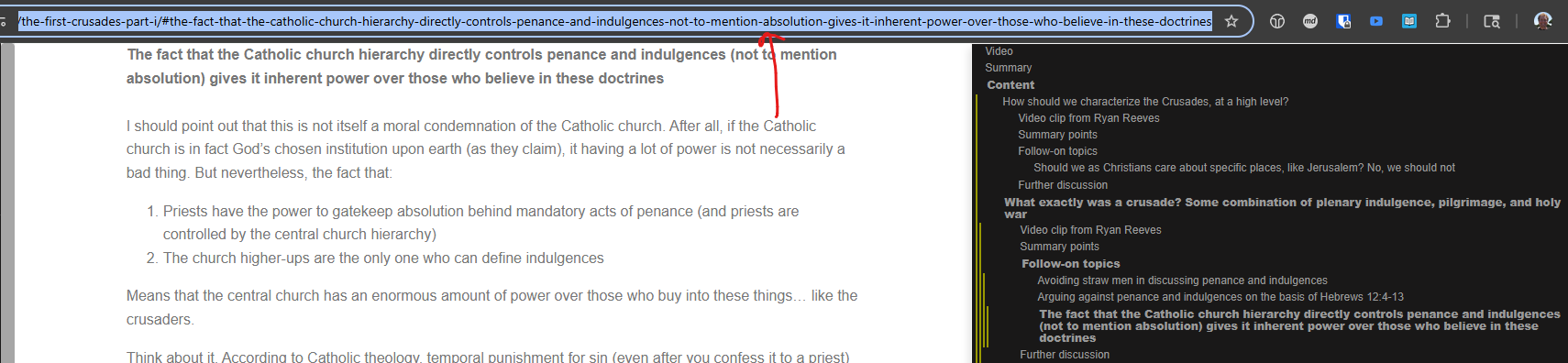
3) A link to a section on the combined page webpage, in the Page column
You can get this by using the sidebar table of contents on the webpage to select a specific section, like so:
And then copy the URL from the address bar, like so:
4) Link(s) to the video segments on Dropbox
Every row on the meeting sheet represents a different content page. Some of these can have more than one recording segment. In column D on the row, enter all the names of recording segments that belong to the content page in order, pressing Alt + Enter between each, so that each ends up on a new line. You should drop the number prefixes and file extensions when creating the links. So, for example, 1-3-summary-points.mp4 becomes just summary-points.
After entering all of them, you should highlight the link text for each (i.e., one-by-one, each on a separate line becoming a separate link), and then press Ctrl + K to open the menu for adding a link. Once you get to this point, you will need to get the URL to paste into this Ctrl + K menu. That is what we will describe next.
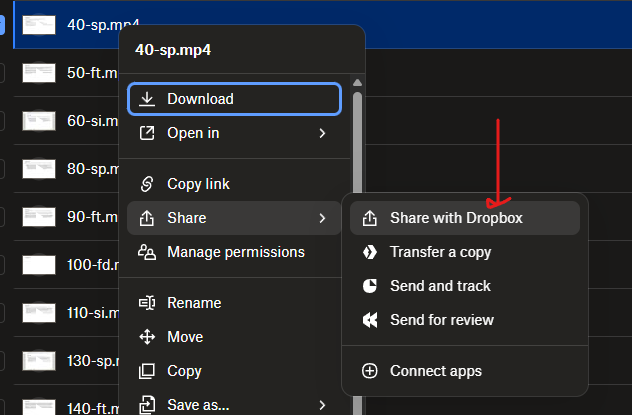
For each video segment in the recordings folder associated with the combined page (recall that you moved recording segments into this folder and renamed them in an earlier step), you can get the proper URL to use as the video segment link target by right clicking the video recording segment in the Dropbox web interface, and then selecting “Share > Share with Dropbox”, like so:
Then click the settings gear:

Then click on the “Link for viewing” tab
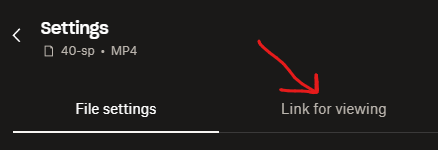
Then click on the “Create link” button:
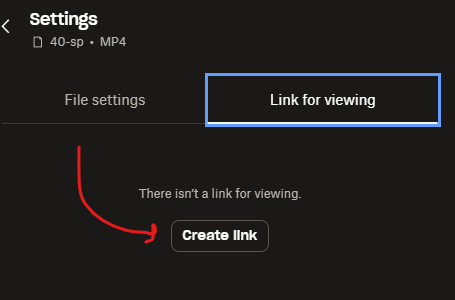
After creating the link for viewing, copy it, and then use it as the link target for the appropriate video segment link on the Meeting Google Sheet’s Ctrl + K menu. Then repeat for all other segments.
There is one sort of video segment link that is not a Dropbox link, and that is the source-clip link for source-clip-video-page pages that embed YouTube video clips. (Note that currently source-clip-video-page pages that embed Ichthys MP3 audio are still Dropbox links, since I record a screen-sharing slides background segment for them. So it is only the embedded YouTube source clips that operate this way). This specific sort of link should link to the wider webpage section above the Source clip from {source} header. Note that this will in practice be the exact same link as in the Sub-part column. Making the link operate in this way will let folks view the embedded YouTube source clips on the webpage, but basically jump directly there from the Meeting Google Sheet, which is useful.
How to add review questions
You will specify review questions within quizdown shortcodes:
{{< quizdown >}}

{{< /quizdown >}}
There is a specific format the questions have to show up in. I’ll go over each of the types below.
In terms of what you make review questions, you should aim to figure out what the most important topics/takeaways from the page are, and then make review questions for all of those. The number of review questions can vary as necessary, but there is no need to be hesitant of making too many, so long as all of them are related to important concepts/topics.
In terms of which “types” of questions you prioritize (as gone over below), use true/false questions, multiple select questions, and sequence/order questions whenever it is logical (should be pretty obvious), and then prioritize fill-in-the-blank questions over multiple choice in the cases where there will not be an ambiguity about what could go in the blank.
So, for example, if the “blank” is a name of a specific person, generally that works fine as a fill-in-the-blank question. But what if the thing you are asking for is a little less clear? Like, would the user tend to “just know” what the options are?
True or false questions
Example:
# True or False: The burning bush was a Christophany

In Exodus 3.

1. [x] True
1. [ ] False
The choice that is the correct one has an x in it.
You don’t have to have any subtext under the question header. So this would work equally fine as a question:
# True or False: The burning bush was a Christophany

1. [x] True
1. [ ] False
Multiple choice questions
# Which prophet ran away from Jezebel?

In 1 Kings 19.

1. [ ] Moses
1. [x] Elijah
1. [ ] Elisha
1. [ ] Jeremiah
1. [ ] Isaiah
The choice that is the correct one has an x in it.
You don’t have to have any subtext under the question header. So this would work equally fine as a question:
# Which prophet ran away from Jezebel?
1. [ ] Moses
1. [x] Elijah
1. [ ] Elisha
1. [ ] Jeremiah
1. [ ] Isaiah
There are some specific sub-types of questions here that can be useful to consider:
- Which of the following are true questions
- All of the following are true except questions
For example:
# Which of the following statements about Jesus are true?

I. Jesus is fully God
II. Jesus is fully man
III. Jesus is co-eternal with the Father

1. [ ] I. alone
1. [ ] II. alone
1. [ ] I. and II.
1. [ ] II. and III.
1. [x] All of the above
# All of the following statements about Jesus are true except

1. [ ] Jesus possesses a divine nature
1. [ ] Jesus possesses a human nature
1. [ ] Jesus is co-eternal with the Father
1. [x] Jesus possesses an angel nature
1. [ ] Jesus is of one substance with the Father
Multiple select questions
In questions of this type, more than one choice needs to be selected for the question to be marked as correct.
Example:
# Who are the two witnesses of Revelation?

Whose ministries run alongside the 144,000.

- [x] Moses
- [x] Elijah
- [ ] Elisha
- [ ] Jeremiah
- [ ] Isaiah
The choices that need to be selected for the question to be marked correct have x’s in them.
You don’t have to have any subtext under the question header. So this would work equally fine as a question:
# Who are the two witnesses of Revelation?

- [x] Moses
- [x] Elijah
- [ ] Elisha
- [ ] Jeremiah
- [ ] Isaiah
There are some specific sub-types of questions here that can be useful to consider:
- Which of the following are true questions, written in such a way that more than one choice is selected at the same time
- All of the following are true except questions, with more than one thing excepted
Sequence/order questions
These questions make the user order the choices.
# God took specific actions on each of the days in the "creation week". Put the creation days in order

As described in Genesis 1.

1. God created light, separating it from the darkness to establish day and night.
2. God created the expanse (sky/heaven), separating the waters above from the waters below.
3. God gathered the waters to reveal dry land, named the land and seas, and created vegetation (plants and trees).
4. God created the sun, moon, and stars to govern the day and night and to mark seasons, days, and years.
5. God created sea creatures and birds to fill the waters and the sky.
6. God created land animals and humanity (male and female) in His own image, giving them authority over the earth.
7. God rested from all His work.
The correct sequence is the one used to define the question. The answers are always shuffled when presented to the user.
You don’t have to have any subtext under the question header. So this would work equally fine as a question:
# God took specific actions on each of the days in the "creation week". Put the creation days in order

1. God created light, separating it from the darkness to establish day and night.
2. God created the expanse (sky/heaven), separating the waters above from the waters below.
3. God gathered the waters to reveal dry land, named the land and seas, and created vegetation (plants and trees).
4. God created the sun, moon, and stars to govern the day and night and to mark seasons, days, and years.
5. God created sea creatures and birds to fill the waters and the sky.
6. God created land animals and humanity (male and female) in His own image, giving them authority over the earth.
7. God rested from all His work.
Fill-in-the-blank questions
In these, the user needs to type in the text that answers the question.
# Which angel told Mary she was pregnant?

In Luke 1.

1. [x] Gabriel
The only thing that distinguishes questions of this type from multiple choice questions is that there is only one choice, which is always checked with an x.
You don’t have to have any subtext under the question header. So this would work equally fine as a question:
# Which angel told Mary she was pregnant?

1. [x] Gabriel
When defining answers to fill-in-the-blank questions, you can make it so that there is more than one accepted answer, using regular expression syntax (() and |).
- So
(The Holy Spirit|Holy Spirit)will match eitherThe Holy SpiritorHoly Spirit.